Amongst the most versatile programming languages is Python. There is such a range of applications it serves, like web development, artificial intelligence, and data analysis. First of all, before we can use the language, it needs to be installed on the computer. Installation instructions follow in this text. They guide installation on multiple different platforms including Windows, macOS, Linux, Raspberry Pi, iOS, and Android. We shall learn also “How to install Python” on the most popular programming tools, such as Visual Studio Code, PyCharm, Anaconda, and IDLE.
How to Install Python on Windows
- Go to the official python site:
- Click to the “Downloads” tab to select “Python for Windows.”
- Make sure you download a suitable version of Python which is relevant for the architecture being 64 or 32 for your window machine.
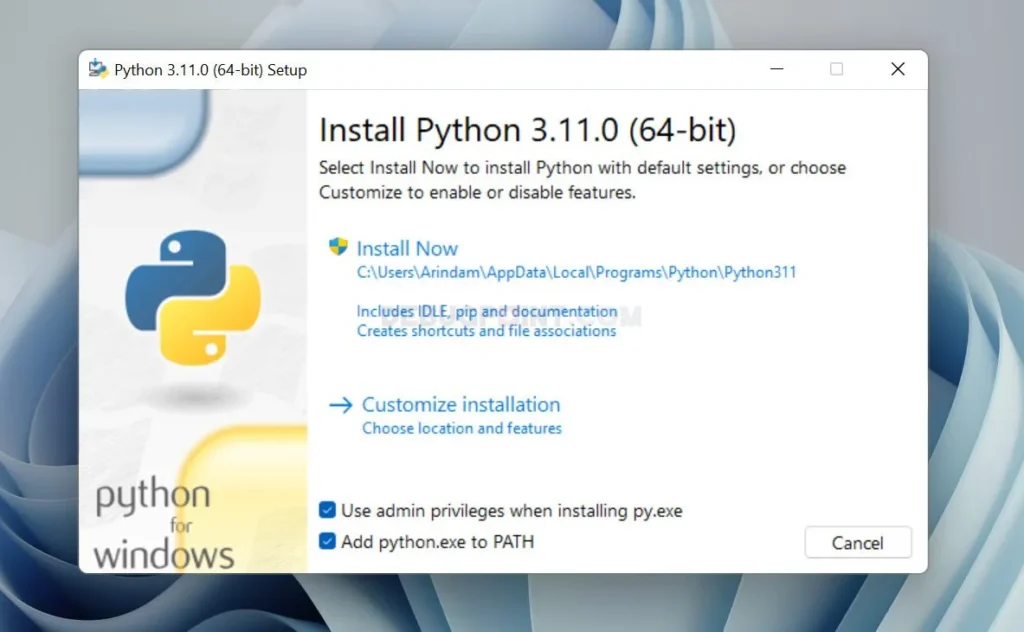
- Install Python Open the downloaded.exe file:
- Ensure that the “Add Python to PATH” check box is checked; this is important because it will add the path of python.exe on your system’s global environment variables.
- To Speed up the installation, click Install Now.
- Verify Installation:
- Open Command Prompt (cmd).
- Type “python –version” or “python3 –version”. You should be able to view the installed version of Python.
How to Install Python on macOS
Python is often included in macOS by default. Open Terminal and type “python3 –version”. If it shows you a Python version, then python a pre-installed on your mac but is it doesn’t then move on with the below steps.
- Download Python for macOS:
- Access the original website of Python
- Download the latest one for macOS
- For an M-series Mac, make sure to download the optimized one for ARM architecture
- Install Python:
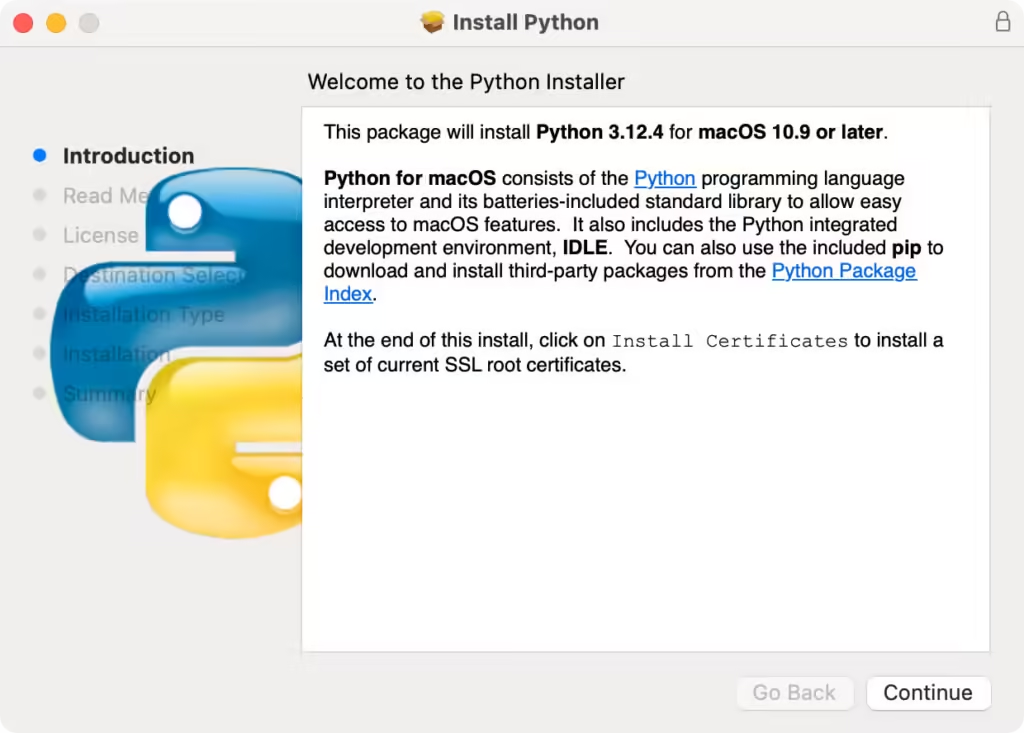
- Open the downloaded .pkg file.
- File installation prompts following.
- Verify Installation:
- Open Terminal.
- Type python3 –version to make surePython is installed correctly.
How to Install Python on Linux (Ubuntu)
- Check Existing Installation:
- Open Terminal and type python3 –version.
- Update System:
- sudo apt update
- sudo apt upgrade
- Install Python:
- sudo apt install python3
- Install pip (Python Package Manager):
- sudo apt install python3-pip
- Verify Installation:
- Run python3 –version and pip3 –version to confirm.
How to Install Python on iOS
You can execute Python code directly on your iOS devices with these following steps
- Download a Python App:
- Install Pythonista or similar apps from the App Store.
- These apps provide a Python interpreter and IDE in one package.
- Using the App:
- Open the app and create a new Python script.
- Write your Python code and run it directly within the app.
- Limitations:
- Apps like Pythonista are sandboxed and cannot access certain system-level functions or external libraries.
How to Install Python on Android
You can execute python on your Android device by following these steps:
- Get Pydroid 3 app:
- Access the Google Play Store, then search for Pydroid 3.
- Download the application on your Android device.
- Setup Environment:
- Open the application. This will automatically download the needed packages.
- Use the integrated editor to create Python scripts.
- Install Additional Libraries:
- Utilize pip as an integrated package manager for libraries
- Use pip install numpy as an example for installing the NumPy library.
- Run Scripts:
- Write your script and tap the run button to execute.
What is IDLE?
IDLE (Integrated Development and Learning Environment) is a simple IDE that comes bundled with Python. It’s perfect for beginners as it provides an interactive shell and an editor for writing and running Python scripts. It includes features like syntax highlighting, autocompletion, and debugging tools.
How to Use IDLE:
- When you install Python from the official website, IDLE is installed automatically.
- On Windows, search for “IDLE” in the Start menu.
- On macOS/Linux, type idle3 in Terminal.
- Use the interactive shell for quick testing or the editor to write complete Python scripts.
Setting Up Python Development Tools
1. VS Code (Visual Studio Code)
VS Code is a lightweight code editor popular among Python developers.
Installation Steps:
- Download VS Code from the official website.
- Install the Python extension from the Extensions Marketplace.
- Open VS Code and configure the Python interpreter:
- Press Ctrl+Shift+P (Windows/Linux) or Cmd+Shift+P (macOS).
- Type “Python: Select Interpreter” and choose your Python installation.
Verify Setup:
- Create a Python file and run it using the integrated terminal.
2. PyCharm
PyCharm is an IDE designed specifically for Python development.
Installation Steps:
- Download PyCharm from the JetBrains website.
- Install the Community (free) or Professional version.
- During setup, select your Python interpreter.
Verify Setup:
- Create a new project and write a simple Python script.
- Run the script using the IDE.
3. Anaconda
Anaconda is a Python distribution for machine learning and data research. The Python, Jupyter Notebook, and several famous libraries are also included.
Steps for Installation:
- Download Anaconda from the official website.
- Follow the installation prompts for your platform.
Verify Setup:
- Open the Anaconda Navigator.
- To begin coding, use Spyder or Jupyter Notebook.
Conclusion:
Regardless of which operating system that you’re using Windows, macOS, Linux, Raspberry Pi, iOS, or Android installing Python on a machine is easy. After installing Python, you may establish a solid environment for your coding activities by installing applications such as Visual Studio Code, PyCharm, Anaconda, or IDLE. You are now prepared to explore the fascinating fields of process automation, data science, and Python app development. Enjoy your experience learning to code!