TensorFlow Lite, often known as TFLite, is a lightweight version of TensorFlow designed specifically for implanted and multipurpose devices. With TFLite, developers can implement machine learning models on low-processing-power microcontrollers as Internet of Things (IOT) devices and on mobile devices. In this article, we’ll explore how to set up Buildozer for TFlite Kivy for Android app deployment, convert TensorFlow models into TFLite models and add TFlite converted model to a Kivy application. By the end, you should have a Kivy app running without problems on an Android device working with a TFLite model.
So Exactly What is TFLite?
As we know TFLite is an open-source machine learning framework for mobile-devices. TFLite enables low latency and memory consumption of pre-trained TensorFlow models on embedded as well as on mobile devices. TFLite supports multiple operating systems, similar as Linux, iOS, Android, and microcontrollers.
Key Features of TFLite include:
- Model Optimization: Techniques like compression and cutting reduce model size and improve prediction speed.
- Cross-Platform Supported: The models work with a many operating systems such as iOS, Android, and embedded systems.
- Pre-Trained Models: Provides many pre-trained models for use, including natural language processing, object recognition, and image classification.
- Custom Models: Additionaly You may convert your own TensorFlow models into TFLite format for mobile deployment.
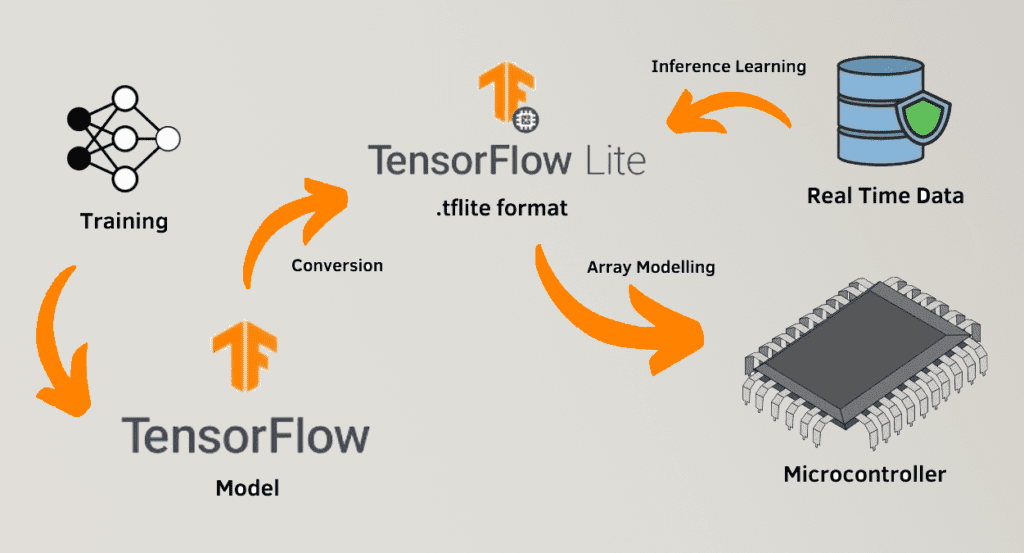
How to Use TFLite Kivy:
Kivy is an open- source and free Python frame for erecting cross-platform apps. You can develop Kivy app on your system once and then have it executable on other devices like iOS and Android by using toolchain and buildozer. Integration of machine learning features in mobile applications is better by using TFLite along with Kivy.
Step 1: Install Required Libraries
Before you start, ensure you have the following Python libraries installed:
- TensorFlow (for model conversion)
- TensorFlow Lite Interpreter (for running TFLite models)
- Kivy (for building the app)
- You can install these libraries using pip:
bash
pip install tensorflow kivy
Step 2: Convert a TensorFlow Model to TFLite
To use a TensorFlow model in a mobile app, you need to convert it into TFLite format. Here’s how:
- Train or Load a TensorFlow Model:
- Train your model using TensorFlow or load a pre-trained model.
- Convert the Model:
- Use the tf.lite.TFLiteConverter to convert the model:
# python code

import tensorflow as tf

# Load your TensorFlow model
model = tf.keras.models.load_model('your_model.h5')

# Convert the model to TFLite format
converter = tf.lite.TFLiteConverter.from_keras_model(model)
tflite_model = converter.convert()

# Save the TFLite model
with open('model.tflite', 'wb') as f:
f.write(tflite_model)
- Use the tf.lite.TFLiteConverter to convert the model:
- Optimize the Model (Optional):
- Use quantization to reduce the model size and improve performance:
# python codeconverter.optimizations = [tf.lite.Optimize.DEFAULT]
tflite_quant_model = converter.convert()
- Use quantization to reduce the model size and improve performance:
Integrating TFLite into a Kivy App:
Once you have your TFLite model, you can integrate it into a Kivy app. Here’s a basic example:
Step 1: Load the TFLite Model
Use the TensorFlow Lite Interpreter to load and run the model:
# python code

import numpy as np
import tensorflow as tf

# Load the TFLite model
interpreter = tf.lite.Interpreter(model_path='model.tflite')
interpreter.allocate_tensors()

# Get input and output details
input_details = interpreter.get_input_details()
output_details = interpreter.get_output_details()
Step 2: Create a Kivy Interface
Build a simple Kivy interface to interact with the model:
# python code

from kivy.app import App
from kivy.uix.label import Label
from kivy.uix.boxlayout import BoxLayout
from kivy.uix.button import Button


class TFLiteApp(App):
    def build(self):
        layout = BoxLayout(orientation='vertical')
        self.label = Label(text="TensorFlow Lite + Kivy")
        self.button = Button(text="Run Model", on_press=self.run_model)
        layout.add_widget(self.label)
        layout.add_widget(self.button)
        return layout

    def run_model(self, instance):
        # Prepare input data
        input_data = np.array([[1.0]], dtype=np.float32)
        interpreter.set_tensor(input_details[0]['index'], input_data)
        # Run inference
        interpreter.invoke()
        # Get the result
        output_data = interpreter.get_tensor(output_details[0]['index'])
        self.label.text = f"Model Output: {output_data}"

TFLiteApp().run()
Configuring Buildozer for Kivy Android Deployment:
Buildozer is a tool that automates the process of packaging Kivy apps for Android. To deploy your Kivy app with TensorFlow Lite, follow these steps:
Step 1: Install Buildozer
Install Buildozer and its dependencies. If you don’t know how to install Buildozer on system following these steps.
Step 2: Create a Buildozer Spec File
Run buildozer init on terminal to generate a buildozer.spec file. Edit the file to include the following requirements:
ini file

[app]
title = TFLite Kivy App
package.name = tflitekivy
package.domain = org.example
source.include_exts = py,png,jpg,kv,tflite
requirements = python3,kivy,tensorflow

# Add TensorFlow Lite interpreter
android.add_libs_armeabi_v7a = libtensorflowlite_jni.so
Step 3: Build the APK
Run the following command to build the APK:
bash
buildozer -v android debug
Step 4: Deploy to Android
Connect your Android device and install the APK:
bash
buildozer android debug deploy run
Buildozer Spec Requirements for TFLite
When using TensorFlow Lite in a Kivy app, ensure your buildozer.spec file includes the following:
- TensorFlow Lite Library (Optional):
- Add the TFLite shared library (libtensorflowlite_jni.so) to the android.add_libs_armeabi_v7a field.
- Dependencies:
- Add this gradle dependency in your .spec file
android.gradle_dependencies = "org.tensorflow:tensorflow-lite:0.0.0-nightly-SNAPSHOT","org.tensorflow:tensorflow-lite-support:0.0.0-nightly-SNAPSHOT"
- Add this gradle dependency in your .spec file
- Buildozer .spec file Important notes:
- Add model extension .tflite to the
source.include_exts = py,png,jpg,kv,atlas,tflite. Add necessary permission accordingly to your app use e.g READ_EXTERNAL_STORAGE, WRITE_EXTERNAL_STORAGE, INTERNET etc.
- Add model extension .tflite to the
Conclusion:
The possibilities for mobile machine learning are endless when TensorFlow Lite is included into your Kivy application. This article shows you how to use Buildozer to construct a Kivy application and convert TensorFlow models into TFLite format for Android deployment. Set up correctly, with appropriate optimizations, your application can give really strong on-device inference capabilities.
This article gives you the groundwork you need to begin developing a TFLite Kivy app for image recognition, natural language processing, or any other machine learning activity.
I have personally successfully developed many tflite kivy app. If you any question or issue regarding tflite kivy comment me I will try to reach you ASAP.
HopeFully By following this guide, you’ll be well-equipped to integrate TFLite Kivy into your Kivy Android projects successfully!
Have fun with your coding!